
FREE PHOTOCRAFT · CADCRAFT
CADCraft Tutorial: Draw, Dimension, Save and Reopen a DXF
Complete a small CADCraft desktop drawing with real screenshots, original DXF files and verified commands; then repeat a basic edit in your browser.
1. Download the sample and open it
First run the matching desktop package。Download practice-plate.dxf below. In CADCraft choose File → Open (Ctrl+O), select it and confirm Open. The canvas should show a 100 × 60 rectangle and a radius-10 circle centered at 50,30. These are drawing units; they do not establish a printer scale.
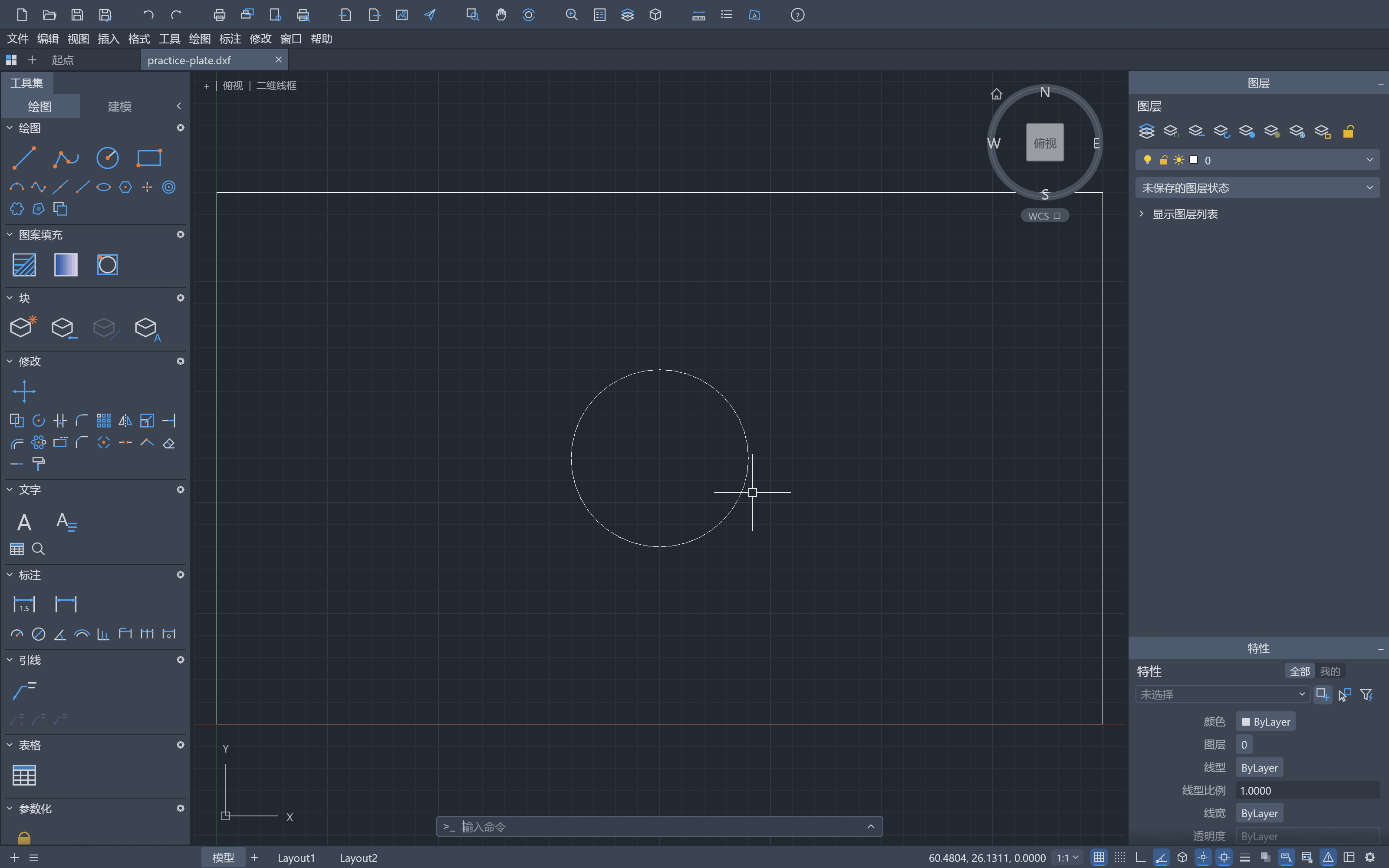
If the command line is hidden, use Ctrl+9 to show it. Click its input at the bottom of the canvas before typing. Type commands in English even when the menus are Chinese. Esc cancels the current command.
2. Add a second circle
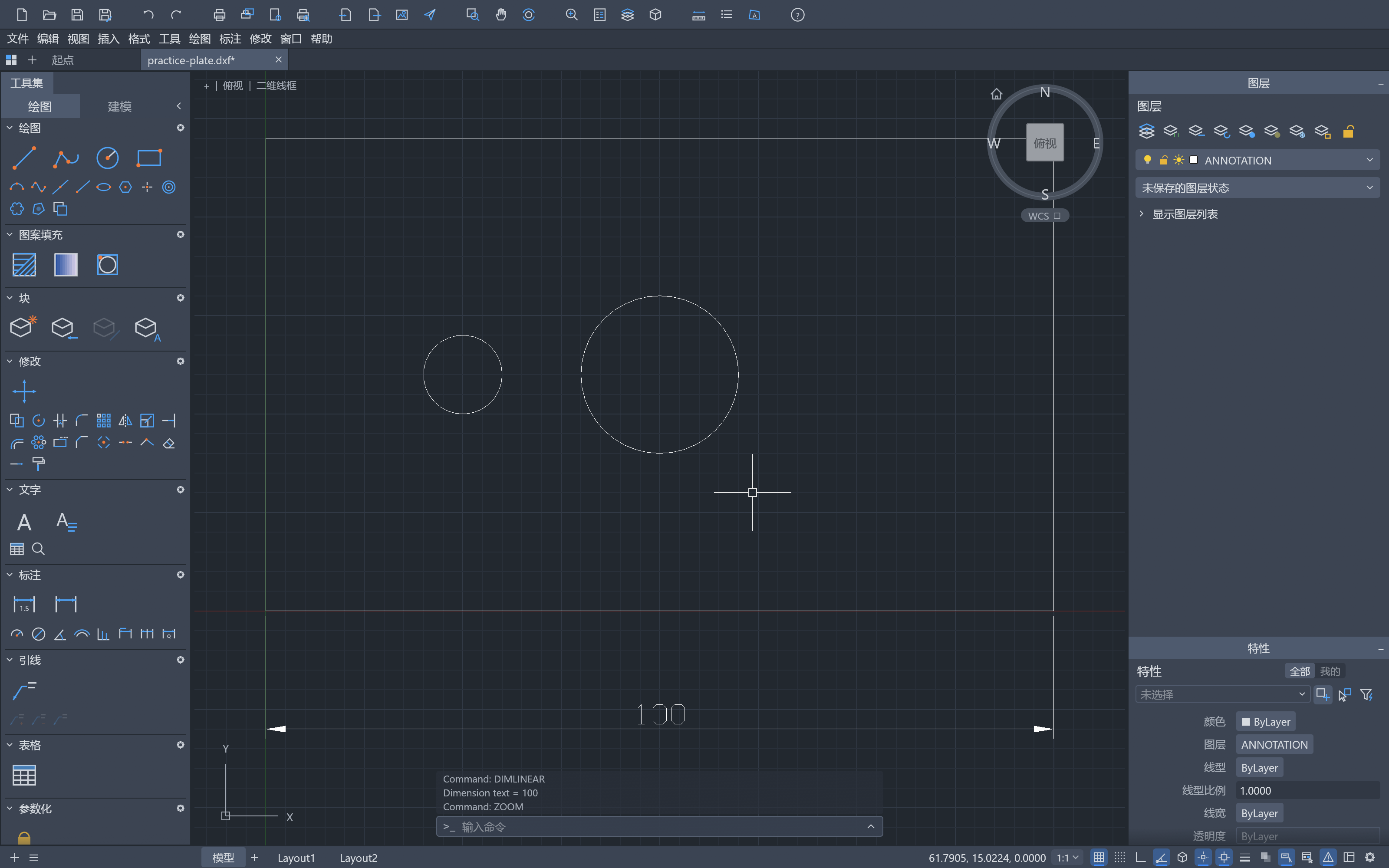
At the command line type the line below, then press Enter. Spaces separate the command, center and radius. Success: a radius-5 circle appears at 25,30, to the left of the original circle.
CIRCLE 25,30 5To build the starting drawing yourself instead, create a new drawing (Ctrl+N), then run each line and press Enter after each. Use either the sample or this route, so you do not duplicate the geometry.
RECTANG 0,0 100,60
CIRCLE 50,30 10
CIRCLE 25,30 5
3. Create an annotation layer and dimension the width
Type -LAYER M ANNOTATION and press Enter. This creates and selects ANNOTATION; the LAYER options prompt remains. Press Enter once more to finish the layer command. Then enter the dimension and zoom lines separately.
-LAYER M ANNOTATION
(press Enter again to finish LAYER)
DIMLINEAR 0,0 100,0 0,-15
ZOOM E
Success: the width dimension reads 100 below the rectangle. ANNOTATION is the current layer, and the drawing has four top-level entities: one polyline, two circles and one dimension.
4. Save a copy, reopen and inspect it
- Choose File → Save As, keep DXF and save a new filename such as practice-plate-complete.dxf. Keep the original sample.
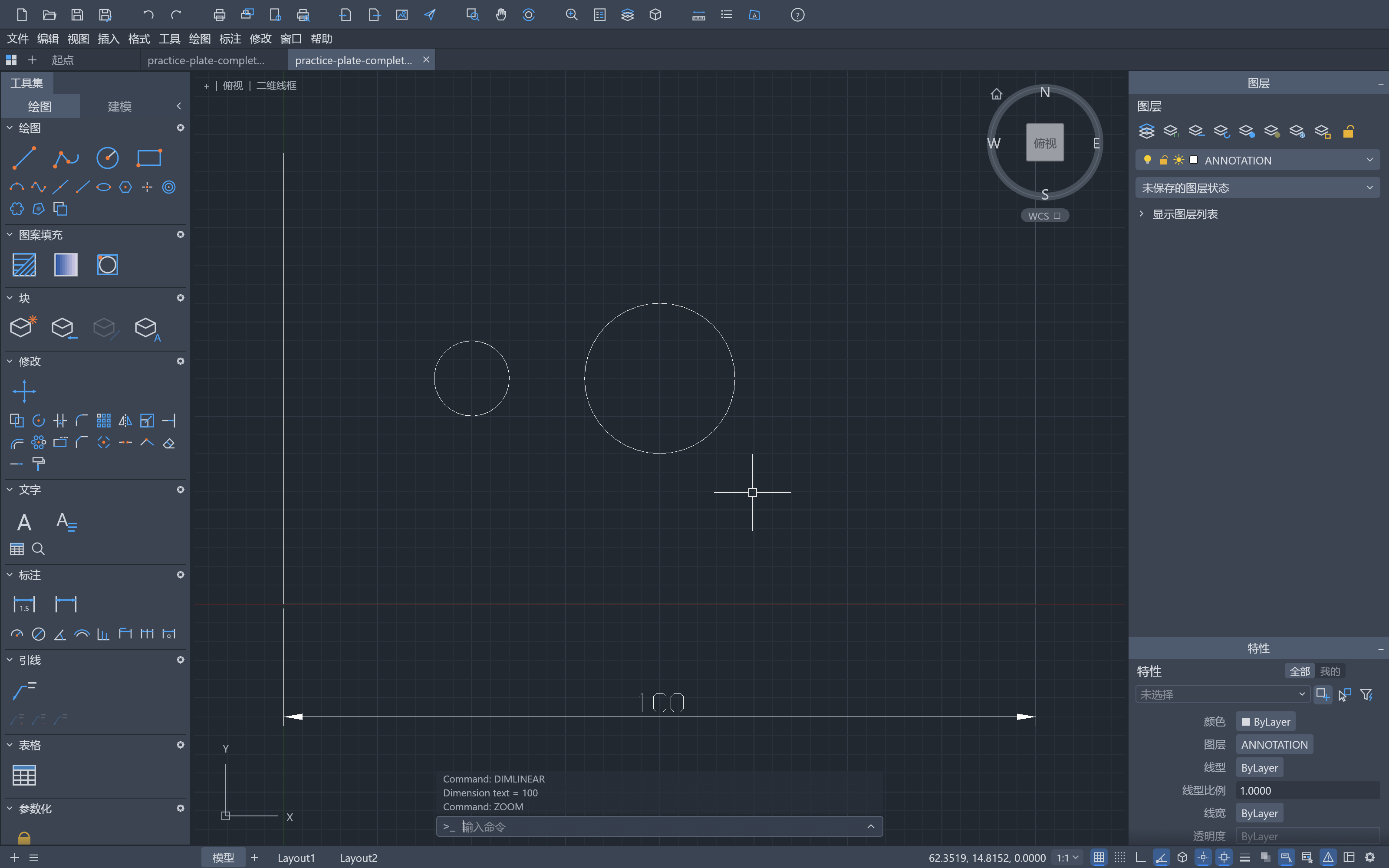
- Use File → Open and choose the saved copy. Confirm both circles, the rectangle and the 100 dimension remain.
- Compare your result with our completed DXF and PNG below. The PNG is a flattened rendering, not an editable drawing.
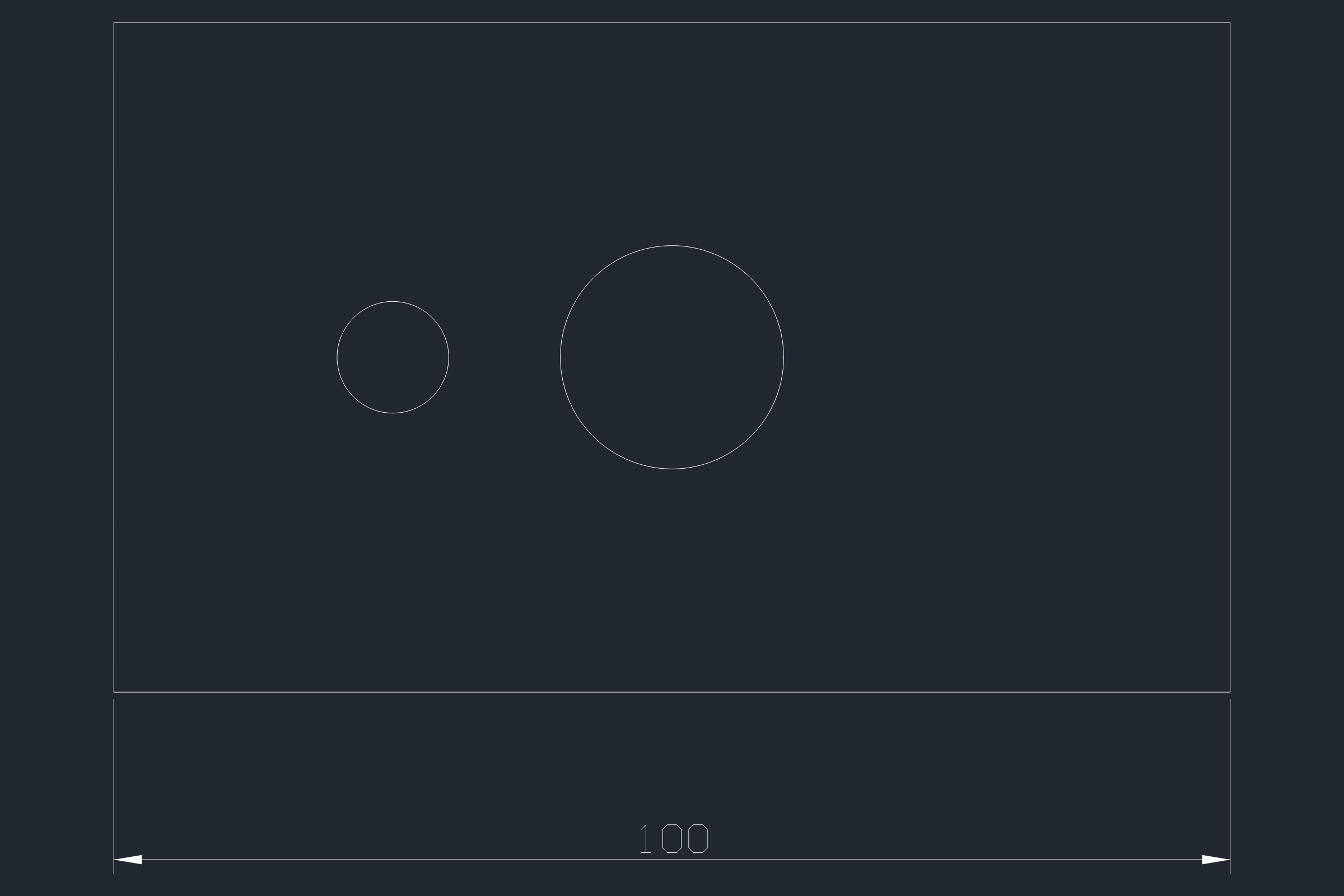
Optional CLI check: open PowerShell in the portable app folder. Replace INPUT and OUTPUT with full file paths, keeping output separate from input. Run info first; stop on an error. The convert command below was tested on the saved DXF.
.\cadcraft-cli.exe info "INPUT.dxf"
.\cadcraft-cli.exe convert "INPUT.dxf" "OUTPUT.png"
5. Try the browser version with the same original file
Open our CADCraft browser build。Click inside the editor, press Ctrl+O and select practice-plate.dxf. Click its command line, enter CIRCLE 25,30 5, then press Enter. Ctrl+S downloads a DXF; it does not silently save over your local source. Use Ctrl+O to reopen the downloaded copy.
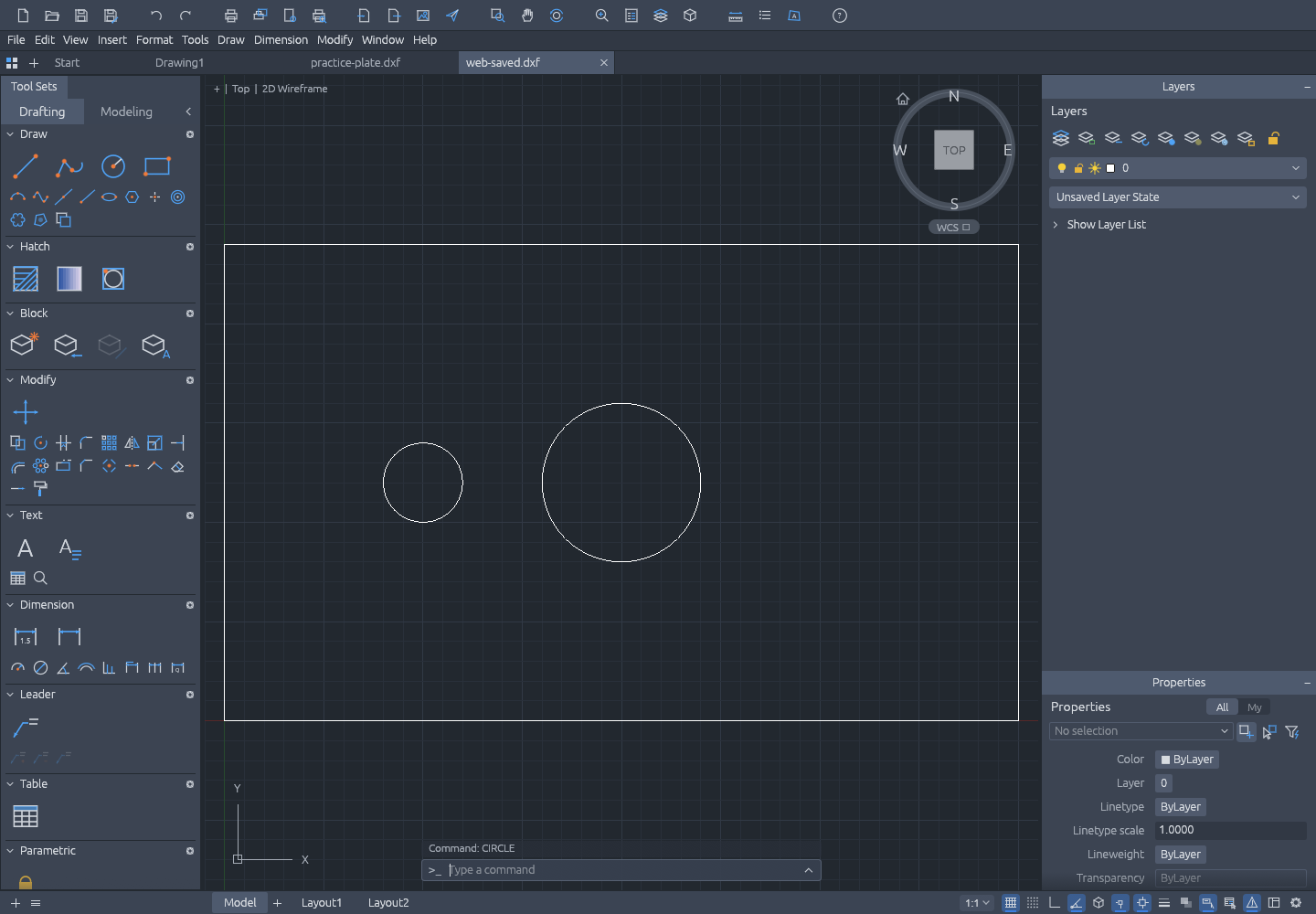
Both the automatic renderer and CPU fallback passed this simple Chromium workflow. We did not test mobile drafting, large drawings or DWG browser round trips.
Compatibility and AutoCAD comparison · Official source and support