
FREE PHOTOCRAFT · GUIDES & RESOURCES
How to Use PhotoCraft: A Free Beginner Tutorial
Make your first edit in one short workflow. No account, desktop installation, or payment is needed for this exercise.
1. Start PhotoCraft Online
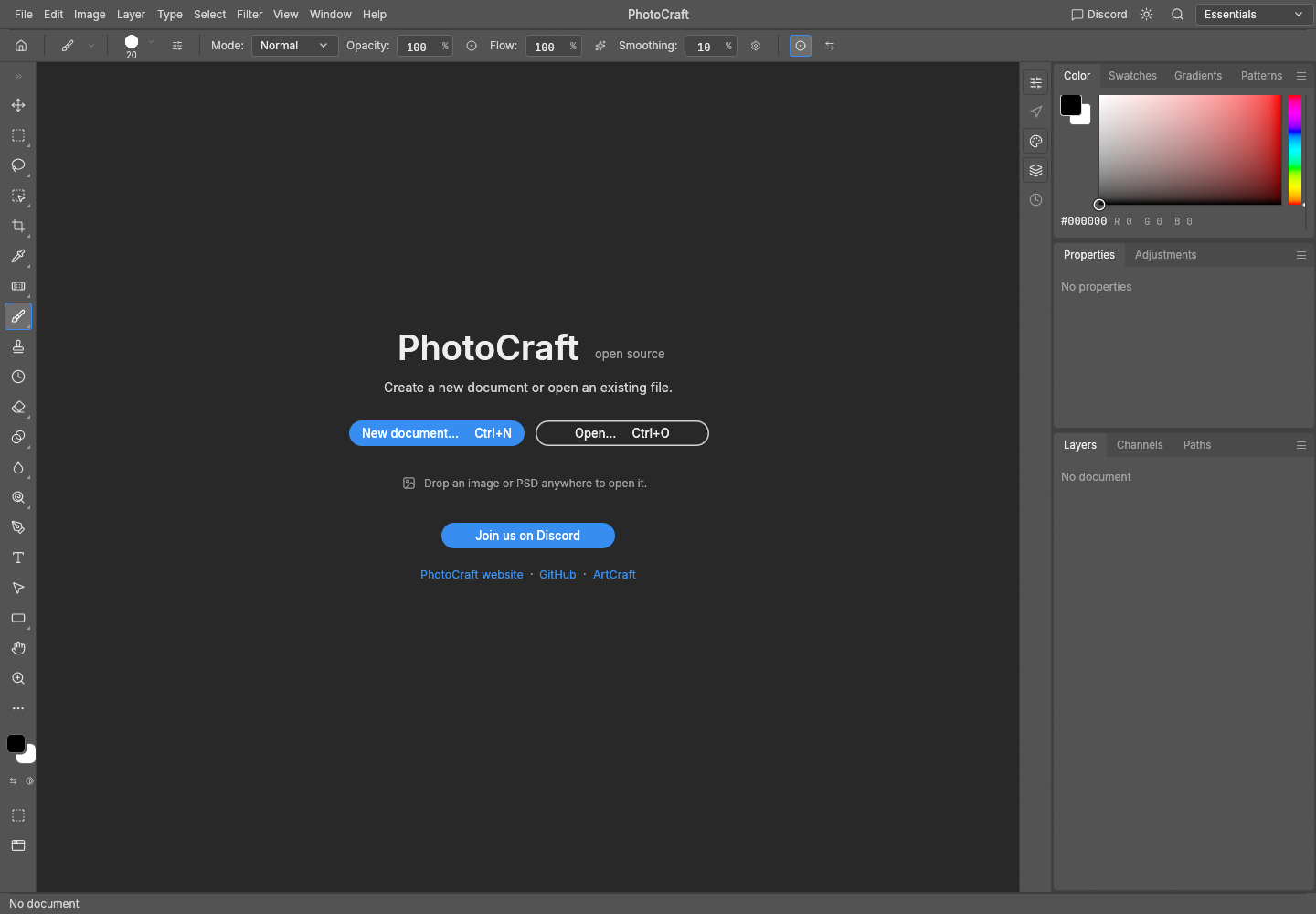
Open the editor, wait until the welcome screen appears, and choose a desktop browser with working graphics support. The initial download includes about 25 MB of WebAssembly.
Open Free Editor · Loading and browser help
2. Open Your First Image
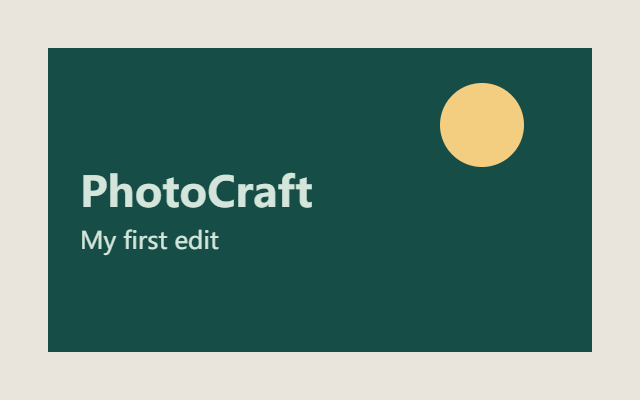
For this exercise, download our original practice image, then choose Open… in the welcome screen (or File → Open…) and select practice-image.png. You can also drag the file onto the canvas.
3. Understand the Workspace
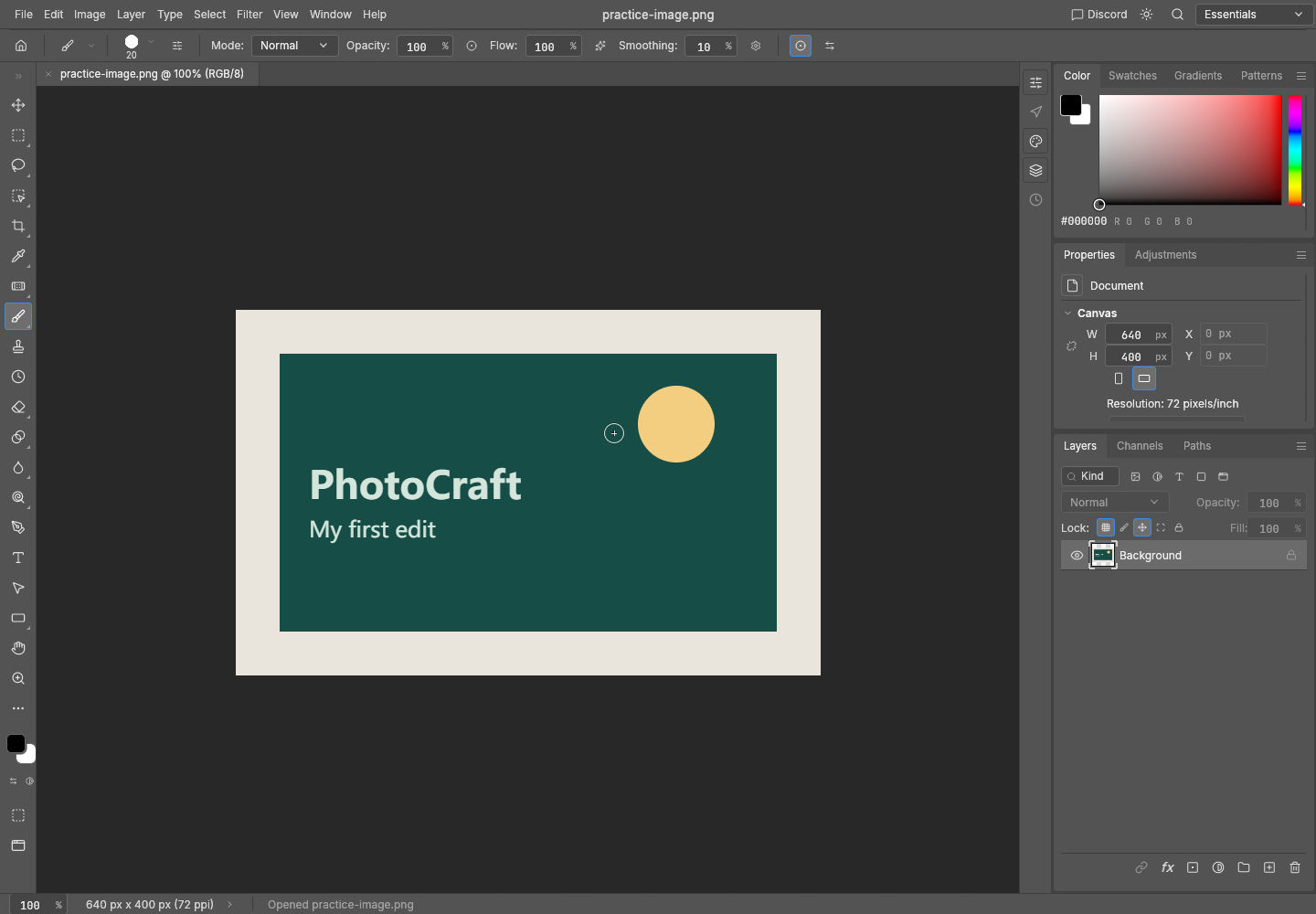
- Top: File, Edit, Image and Layer menus, followed by tool options.
- Left: the toolbar, including the Brush tool.
- Center: your image canvas.
- Right: colors, properties and the Layers panel.
4. Make a Basic Edit with Layers
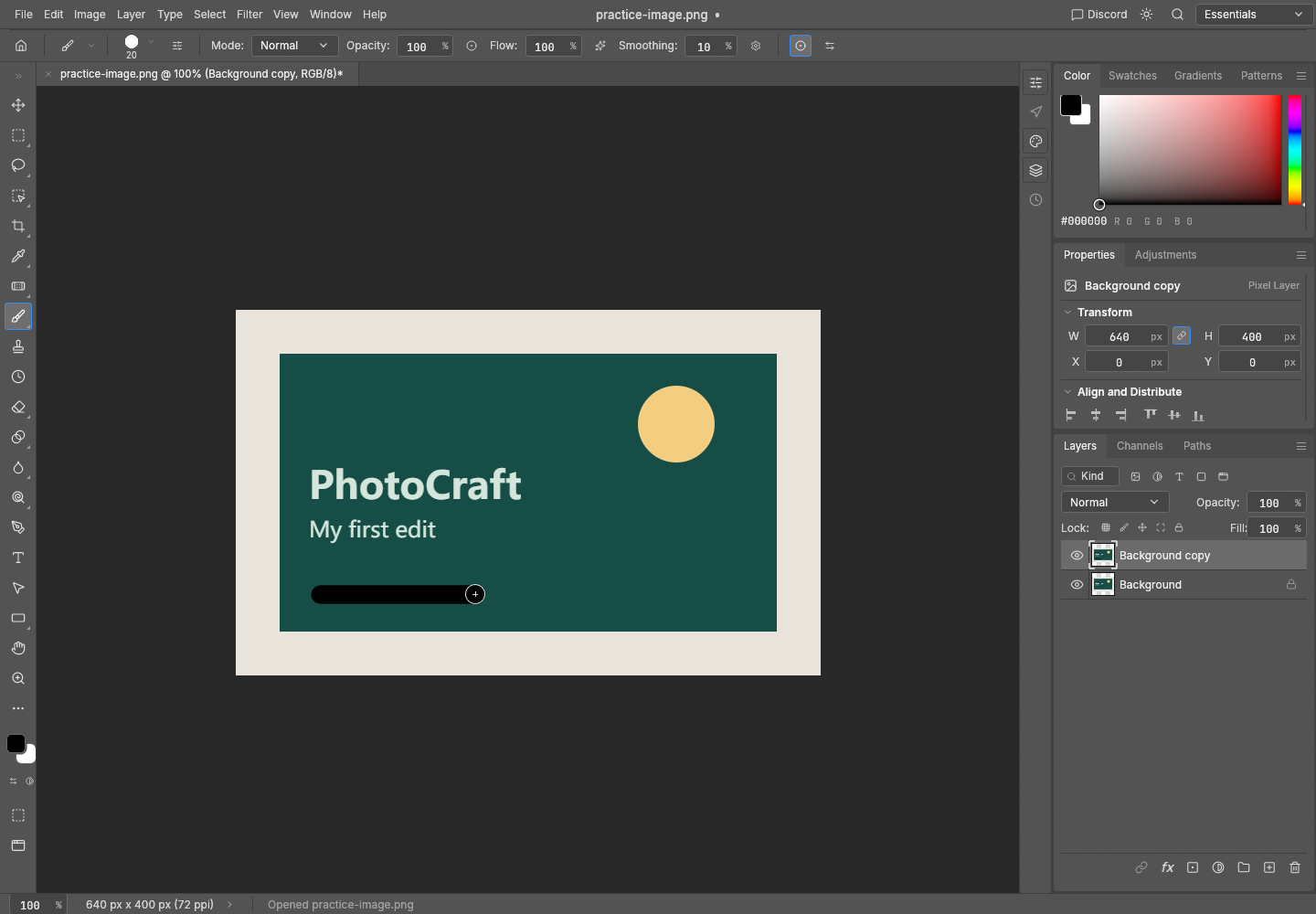
- Select Background in Layers. On Windows/Linux press Ctrl + J; on Mac use ⌘ + J. A new Background copy appears.
- Keep the copy selected. Click the Brush tool in the left toolbar. Use the foreground color swatch to choose your color.
- Drag across the blank lower area of the practice image to draw a short line. Our screenshot uses the default black brush.
- If needed, choose Edit → Undo. The original Background layer remains under the copy.
5. Export Your Finished Image
- Choose File → Export → Quick Export as PNG.
- Check your browser Downloads list. If a save dialog appears, choose a folder and save under a new filename.
- Open the downloaded PNG and confirm the brush stroke appears. PNG is a flattened image; it does not preserve your editable layers.
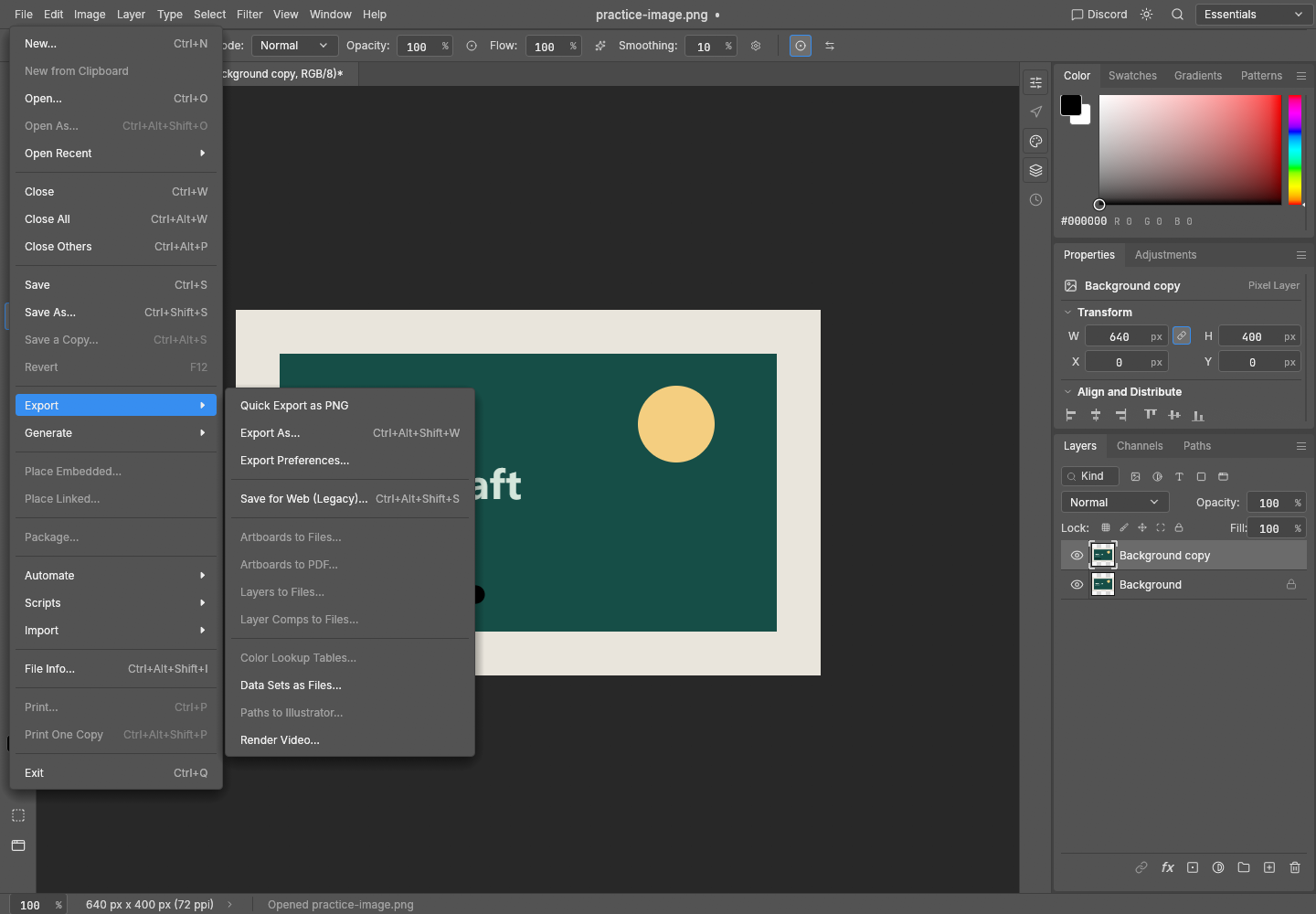
We verified this PNG workflow. PSD round trips, every file format and all professional workflows have not been validated in this tutorial.
Common Beginner Questions
Can I use my own image?
Yes. Try a small PNG first and keep the original. Large images and complex PSD documents may need more memory or behave differently.
Will this work on my phone?
The interface is designed for desktop use. For this tutorial, use a computer with a keyboard and mouse. Browser graphics support varies.
The editor stays on Loading. What next?
Loading and browser help · Desktop downloads · PhotoCraft vs Photoshop