
FREE PHOTOCRAFT · SOLIDCRAFT
SolidCraft AI / MCP Tutorial: Connect, Resize, Measure and Export
Connect SolidCraft MCP to Claude Code, understand headless and desktop-bridged sessions, and follow a verified mounting plate resize, measurement and export workflow.
SolidCraft v0.12.0 · Independent guide · October 16, 2026
What does the AI integration do?
SolidCraft MCP exposes modeling operations to a compatible AI client. The client interprets the request and plans; SolidCraft performs sketch, solid, parameter and file operations. MCP is not a language model and does not include free model usage.
The worked case used actual MCP tool calls to drive the Windows v0.12.0 app: resizing, measuring, taking screenshots, saving and exporting. The Claude Code setup syntax comes from official documentation. No paid model conversation or model success-rate test was performed for this tutorial.
1. Prepare the program, working folder and design
- Extract the Windows x64 portable package from the download guide and locate solidcraft.exe and solidcraft-cli.exe.
- Create a SolidCraftDemo folder inside Documents and download mounting-plate-60.solidcraft into it.
- Open PowerShell in the portable-program directory. The commands below allow this MCP session to access only the named project folder plus upstream default folders.
$demo = Join-Path ([Environment]::GetFolderPath("MyDocuments")) "SolidCraftDemo"
New-Item -ItemType Directory -Force -Path $demo | Out-Null
2. Choose headless or desktop-bridged mode
Headless mode models in a separate session without a desktop window. This command checks that the MCP process starts. Waiting for protocol input without a normal prompt is expected. Press Ctrl+C to stop this manual check before letting the AI client start its own process.
.\solidcraft-cli.exe mcp --allow-path "$demo"Desktop-bridged mode lets you watch the modeling. Start this command in the first PowerShell window and leave it running. The client connects to the same port with --connect. If another program owns the port, stop this attempt and choose a different explicit port in both places.
.\solidcraft.exe --control 7878The bridge connects to 127.0.0.1 on your machine. It uses the app’s local token mechanism; do not paste control tokens or model-service credentials into a tutorial or chat.
3. Connect Claude Code
Prerequisite: Claude Code is installed and already works for you. Open a second PowerShell window in the portable-program directory and copy the four lines below. This registers a local MCP server with Claude Code using your existing client setup; it does not create a model-service account for SolidCraft.
$demo = Join-Path ([Environment]::GetFolderPath("MyDocuments")) "SolidCraftDemo"
$cli = (Resolve-Path .\solidcraft-cli.exe).Path
claude mcp add solidcraft -- "$cli" mcp --connect 127.0.0.1:7878 --allow-path "$demo"
claude mcp list
Confirm that solidcraft is listed and connects, then enter a Claude Code session and inspect its tools. Start with list_commands or inspect_design before editing. In another compatible client, set command to the full CLI path and args to mcp, --connect, 127.0.0.1:7878, --allow-path and the full project-folder path as separate arguments. Check that client’s documentation for its configuration-file location.
4. Complete a mounting plate edit
Give the client the full project-folder path, then send the task below. Planning quality and latency depend on the client, model and part complexity; start with this fixed small example.
Open mounting-plate-60.solidcraft in the SolidCraftDemo folder. Inspect its parameters, body count and timeline errors first. Set width to 80 mm, keeping height=30 mm, thickness=4 mm and both 6 mm holes. Measure the bounding box and volume; confirm the right hole center is (70,15) mm. Take a screenshot, then save as mounting-plate-ai-80.solidcraft and export mounting-plate-ai-80.step without overwriting the input.On a small screen, scroll horizontally inside the table.
| Order | Tool and arguments | Success check |
|---|---|---|
| 1 | open → inspect_design | One body, width=60, no feature errors. |
| 2 | set_parameter {"name":"width","value":"80 mm"} | Rebuild result with no failing features. |
| 3 | measure → inspect_design | 80 × 30 × 4 mm; about 9373.843 mm³; right hole x=70. |
| 4 | screenshot | Screenshot shows the plate with both holes. |
| 5 | save → export | New editable and STEP files exist; input remains intact. |
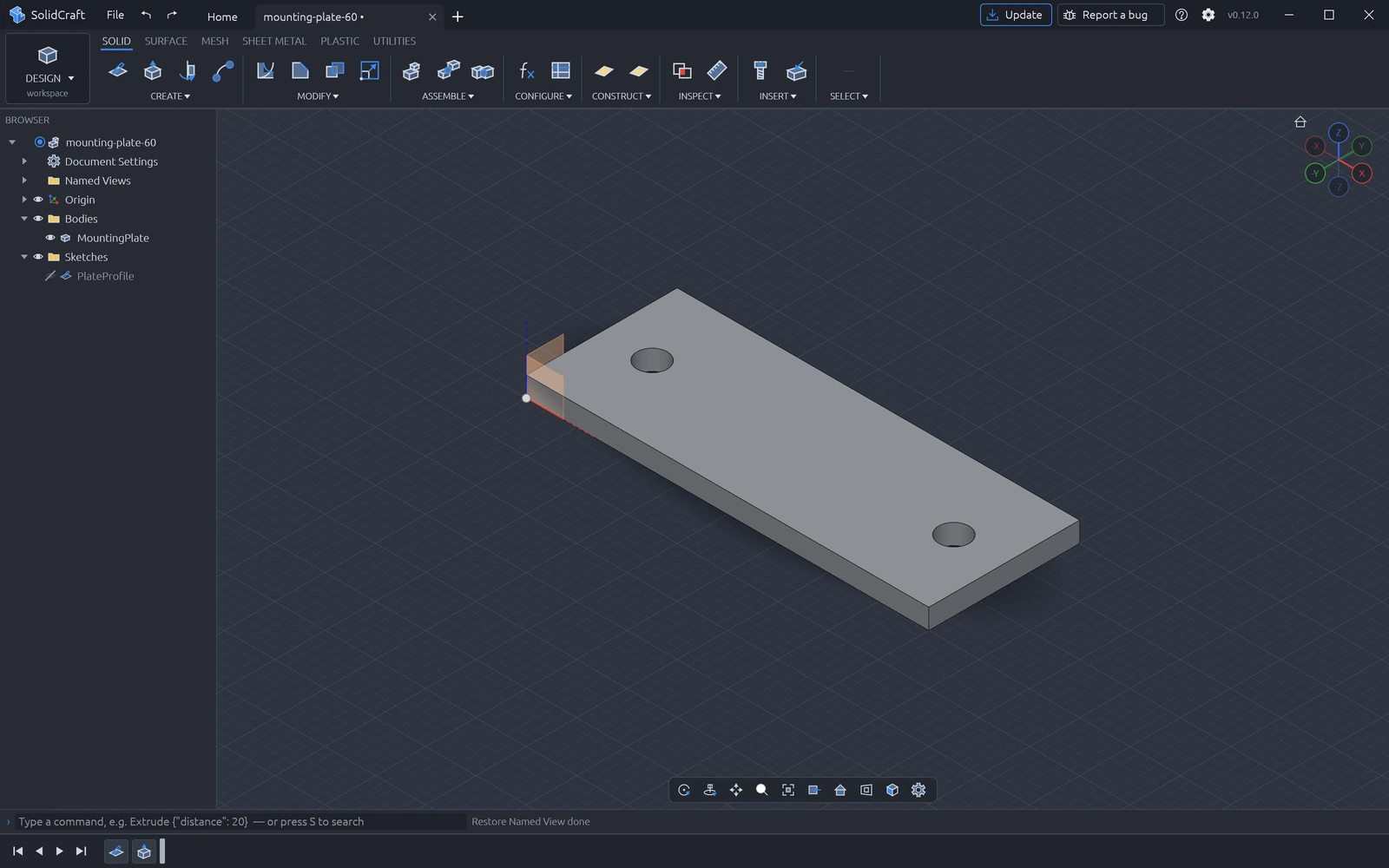
For a protocol check independent of an AI client, download the Python MCP check script. Save it beside the portable executables and run the command below in the same PowerShell window. It starts a separate headless MCP session, checks the example resize and writes new files. It requires Python 3 and no third-party packages.
python .\mcp-resize.py --cli .\solidcraft-cli.exe --design "$demo\mounting-plate-60.solidcraft" --out "$demo\mcp-check"PASS, an 80 × 30 × 4 mm bounding box and new exports confirm the local MCP toolchain works. They do not establish that a particular language model will reliably complete the task.
Troubleshoot in this order
- CLI not found: check the full executable path. solidcraft.exe is not the MCP server.
- No SolidCraft app is listening: start the desktop with --control, then check that both ports match.
- Path refused: keep models and exports in the explicit project folder and check --allow-path. Do not open an entire drive to bypass the error.
- Parameter call fails: set_parameter takes value; the engine command parameters.change takes expression. These are different interfaces.
- A workflow fails midway: inspect_design before retrying. After an interruption, do not assume that the previous edit never ran.
- Connected but no model response: check the AI client’s own account, model service and usage allowance.
Sources and version
Sources checked October 16, 2026. Examples target SolidCraft v0.12.0; the latest release and main-branch documentation may change. This is an independent guide.
Official GitHub · v0.12.0 release notes · Official getting-started guide · Official MCP setup and tool documentation